









Step 2: SharePoint Online list for logging

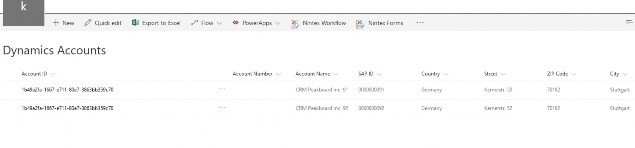
In SharePoint Online I created a list with the required account fields. This list will be used later in Flow to log all synchronized Dynamics 365 accounts including the SAP customer number.
Step 3: Install and configure ECS Core to connect to the SAP ERP system
ECS Core enables you to build powerful and sophisticated cloud integration for SAP on-premises. It allows you to integrate your cloud-based apps with SAP. For that, ECS Core uses only outbound connections. It pulls the pending requests from the cloud, sends the query to the SAP system for execution and then sends the SAP result back onto the cloud service.
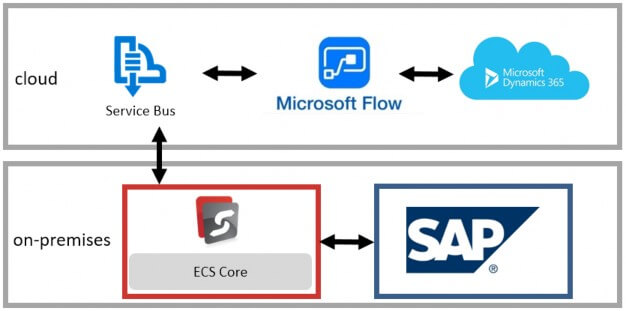 ECS Core is installed on-premises. There I define the connection to the SAP ERP system. This connection will be used to connect to the SAP system and create or update the SAP customer.
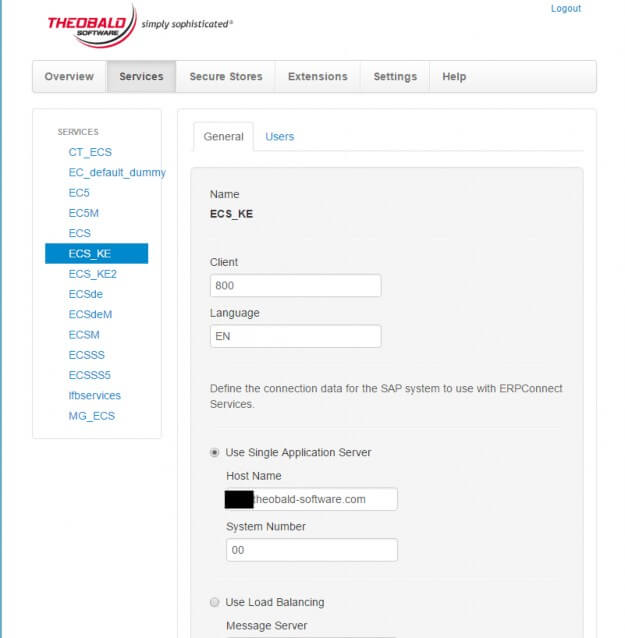
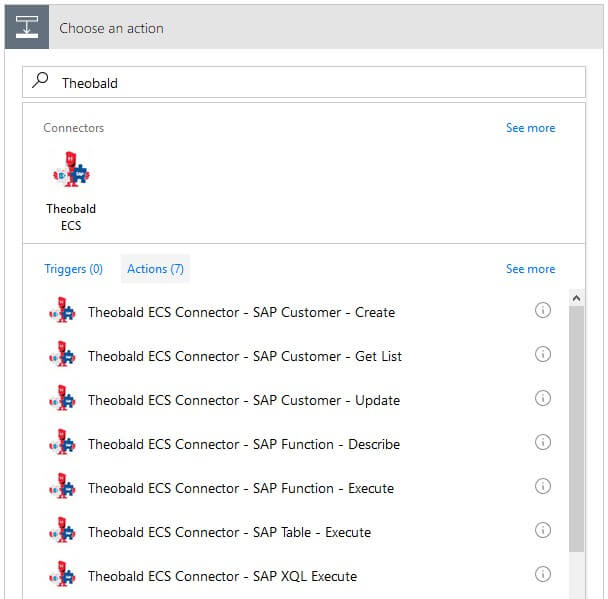
The ECS Core connector for Microsoft Flow provides standard actions to manage SAP customers that will be used later in our scenario.
Step 4: Use Microsoft Flow to define a workflow to trigger account changes in Dynamics 365
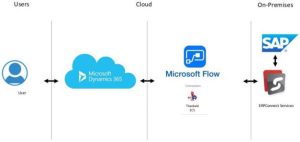
As workflow engine, I am using Microsoft Flow to trigger any account changes in Dynamics 365, where the account type is changed from prospect to customer and no related SAP customer exists.
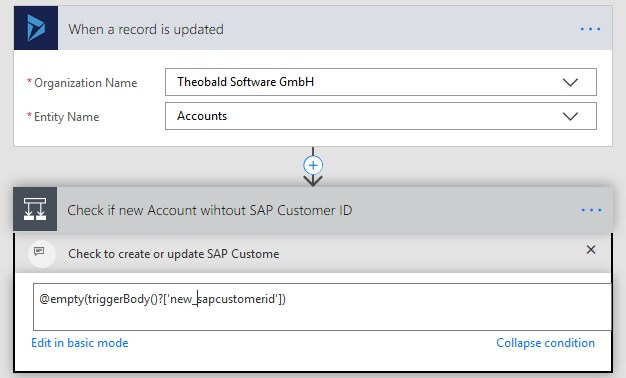
In this case, the SAP customer will be created using the Dynamics 365 account data. When the operation is successful, the Dynamics 365 account is updated with the SAP customer number. If the SAP customer exists, then it will be updated.
In Microsoft Flow, I will use the ECS Core custom connector to create and update SAP customers. We will use the action SAP Customer – Create to create an SAP Customer.
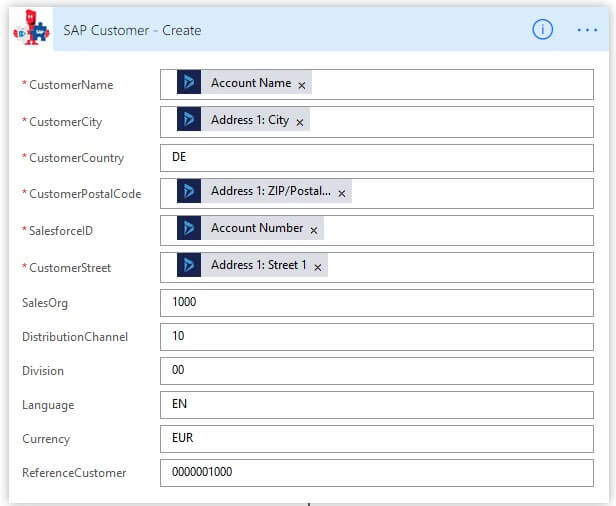
The action SAP Customer – Update will be used to update an existing SAP customer.
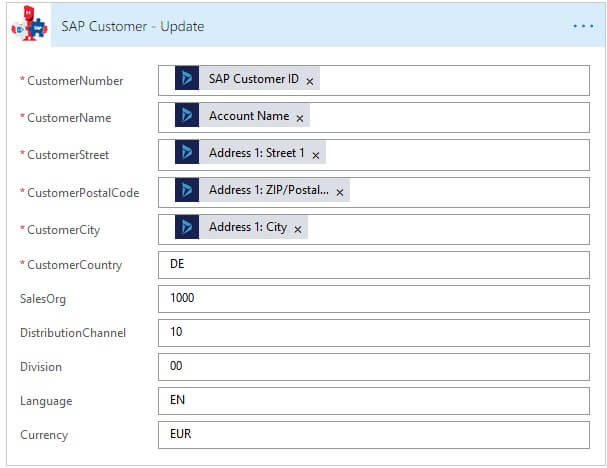
Below you find the Microsoft Flow branch to create the SAP customer. After the SAP customer is created, an item is created in the SharePoint list, the Dynamics 365 account is updated with the SAP customer number and an email notification is sent.
Optional steps:
In our workflow, we can use further optional steps. An additional Microsoft Flow step can be used, e.g. to be notified per email when a customer has been created or changed.
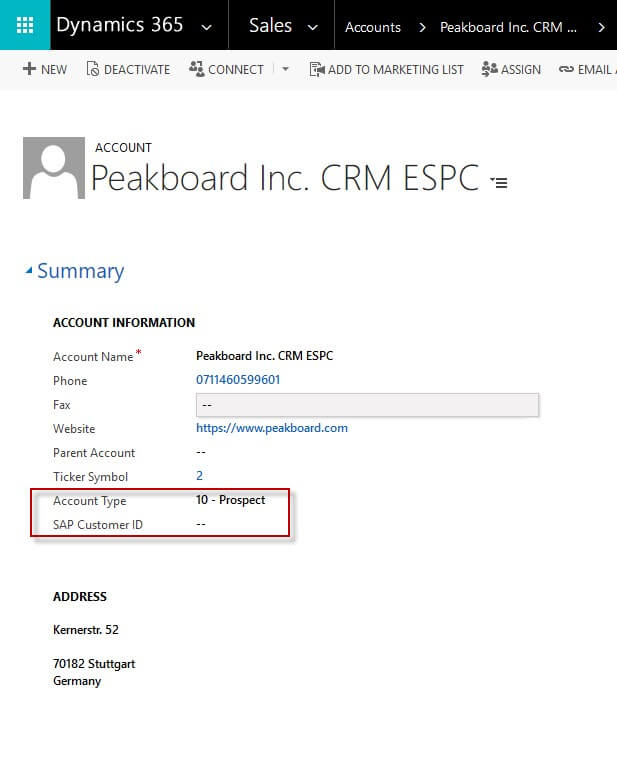
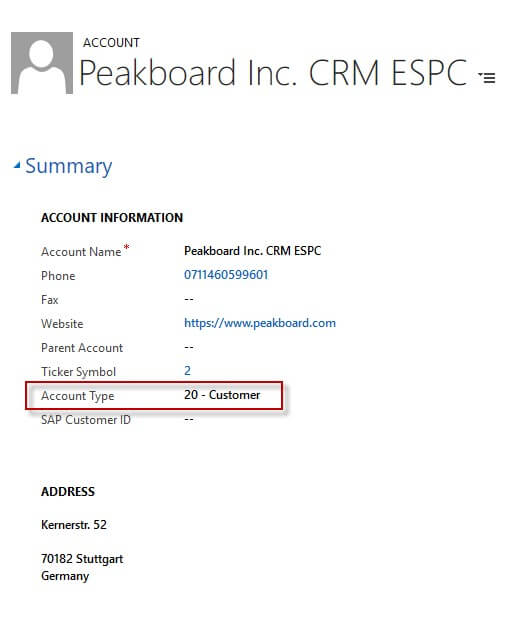
Now let us see this in action. Let us change the account type to customer. As you can see the SAP customer ID field is empty.
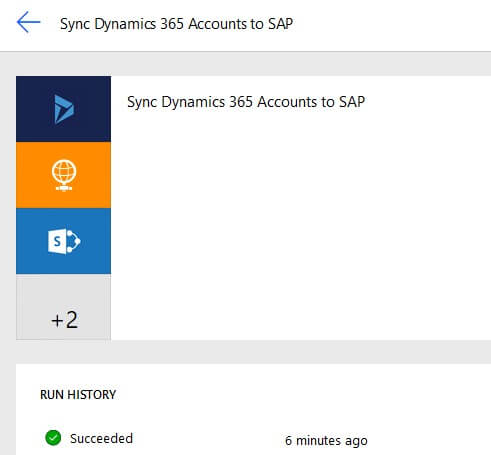
The workflow runs successfully.
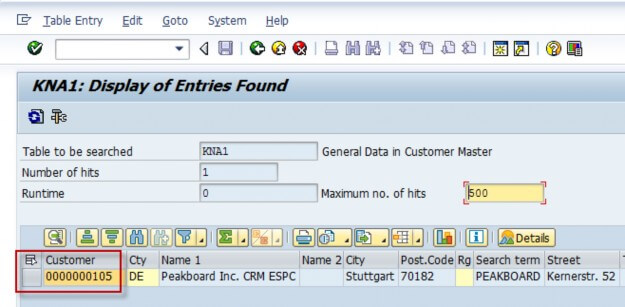
Check that the customer has been created in SAP.
In the SharePoint list a new item has been created.
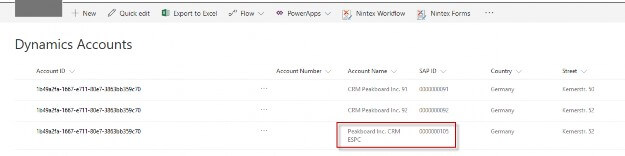
Go to Dynamics 365 and check that the SAP customer number is set.
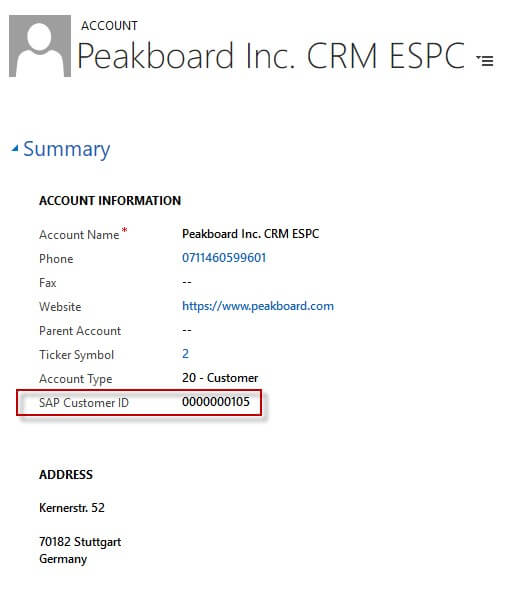
In this blog, I have described how a Dynamics 365 account is synchronized in near-real time to SAP on- premises using Microsoft Flow as a workflow engine and ECS Core as SAP Integration tool. After the customer is created in SAP, the account in Dynamics 365 is updated with the SAP customer number.
Since Microsoft Flow offers connectors for other numerous Business Systems, including Salesforce for example, similar scenarios can be implemented. Theobald connector for SAP works also for Integration with other business systems and workflow engines on-premises and in the cloud.
External links:
Microsoft Flow: http://flow.microsoft.com/
ERPConnect Services Core (ECS Core) for SAP Integration: https://theobald- software.com/en/erpconnect-services-ecs-core.html
Author: Khoder Elzein, SVP Presales & Product Management
Khoder is responsible for presales at Theobald Software and always has an attentive ear for business partners. When travelling in Germany or abroad, he provides customer support at PoCs, workshops and on training courses. He also looks after the product management & development. Khoder has been working in IT since the turn of the millennium; he has been a member of team Theobald since 2009 and enjoys working as speaker, blogger and trainer.
Tags: SAP Integration, Cloud Integration, Flow, Theobald, Dynamics 365, SharePoint Online