









Custom Page Navigation In Power BI

Contents
Custom Page Navigation In Power BI
Page navigation in Power BI refers to the process of moving between different report pages within a Power BI report. It is an important feature that allows users to organize and present data in a clear and concise manner.

In this post, we will explore Page Navigation in Power BI, and How to customize your dashboard pages in Power BI Navigation.
Page Navigation In Power BI
Page Navigation in Power BI is an essential part of creating effective and user-friendly reports to organize your pages into clear structured and logical pages to help users quickly find the information they need.
Page Navigation Options In Power BI
In Power BI, you can perform Page Navigation in different ways as stated below:
- Tab navigation.
- Buttons.
- Bookmarks Navigator.
- Page Navigator.
1) Tab Navigation
The simplest and most common way to navigate between pages in Power BI is by using the tabs at the bottom of the report canvas. Each tab represents a different report page, and you can click on a tab to switch to that page.
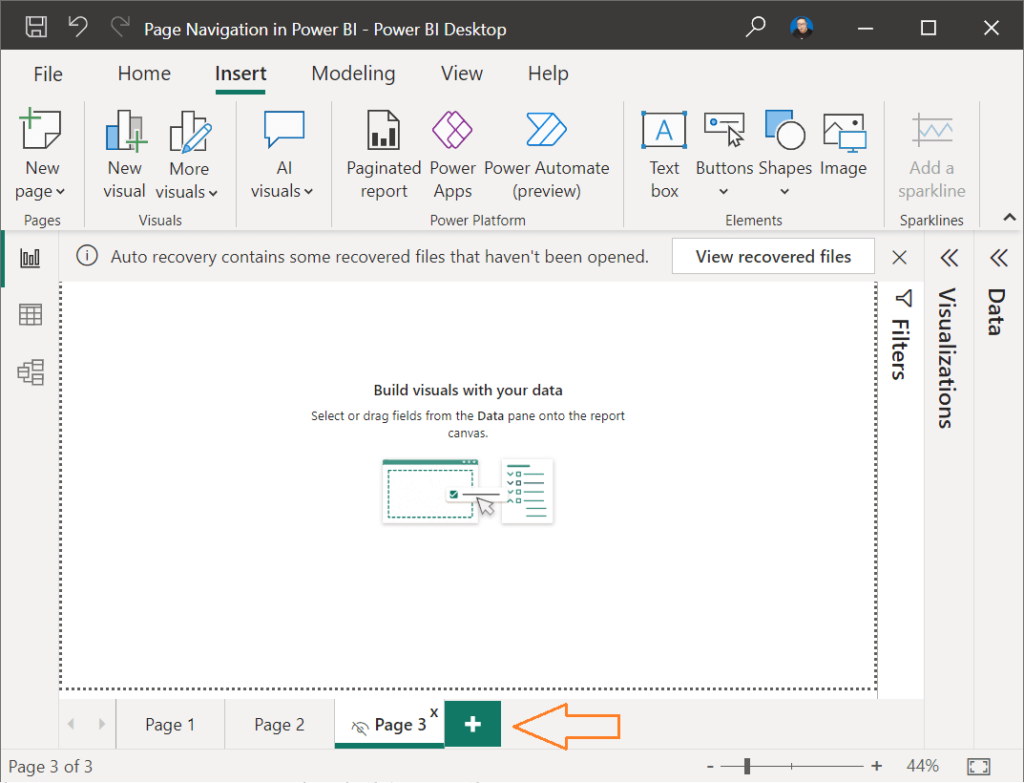
Note: In Live view, the hidden pages are not shown, it’s only shown in Edit view.
2) Buttons Navigation
Besides, the Tab Navigation, You can also use buttons to create custom navigation experiences within a report.
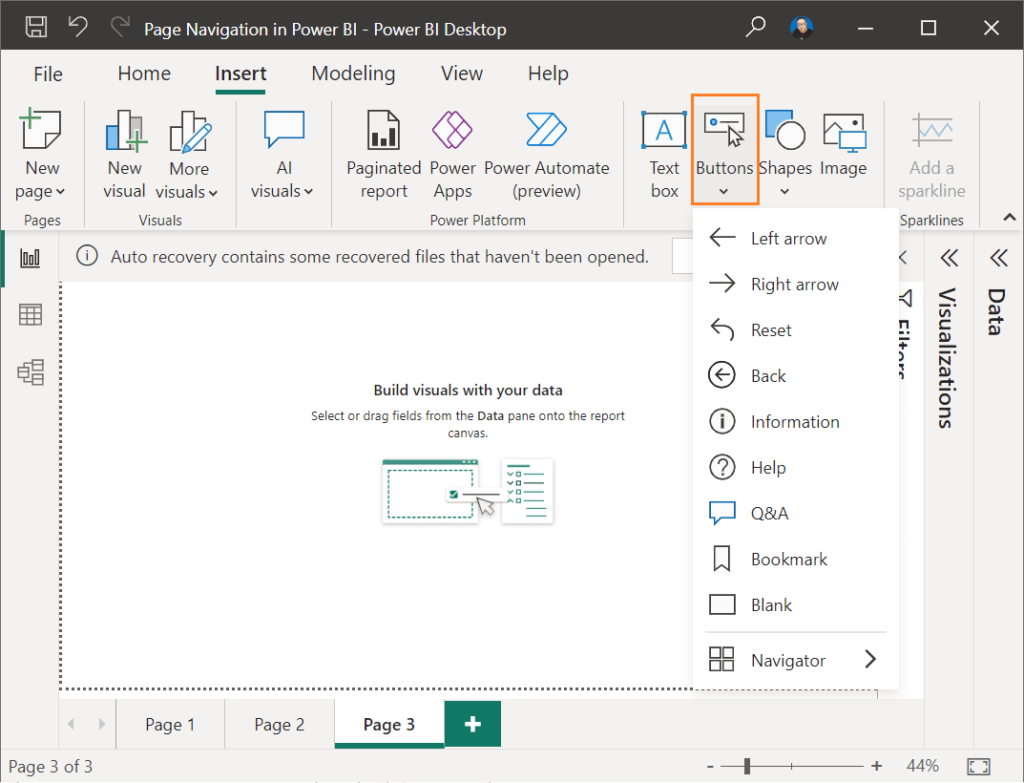
For example, you can create a button that takes users to a specific report page or bookmark, web URL, Q&A …etc.
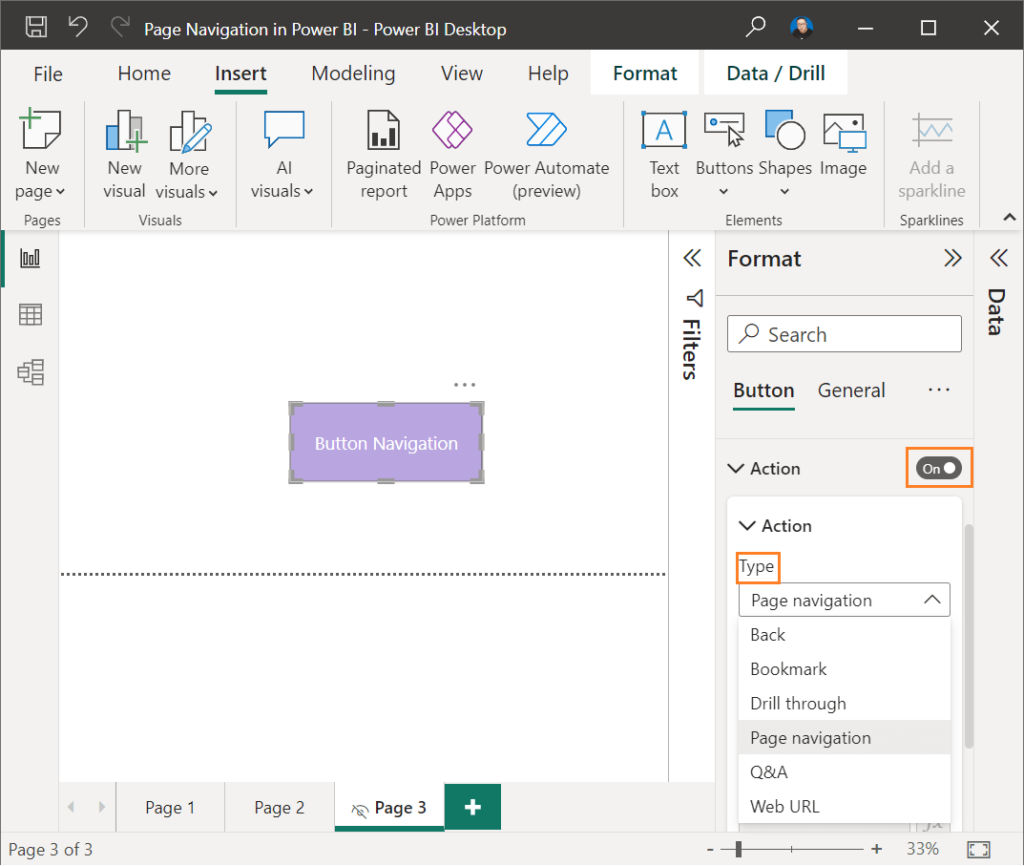
3) Bookmark Navigator
Bookmarks allow you to save the state of a report page, including filters, slicers, and other visuals, so that you can quickly retu
to that view later. This is useful when you want to create custom navigation experiences within a report.
Bookmark navigator helps you to navigate between your bookmarks easily and quickly.
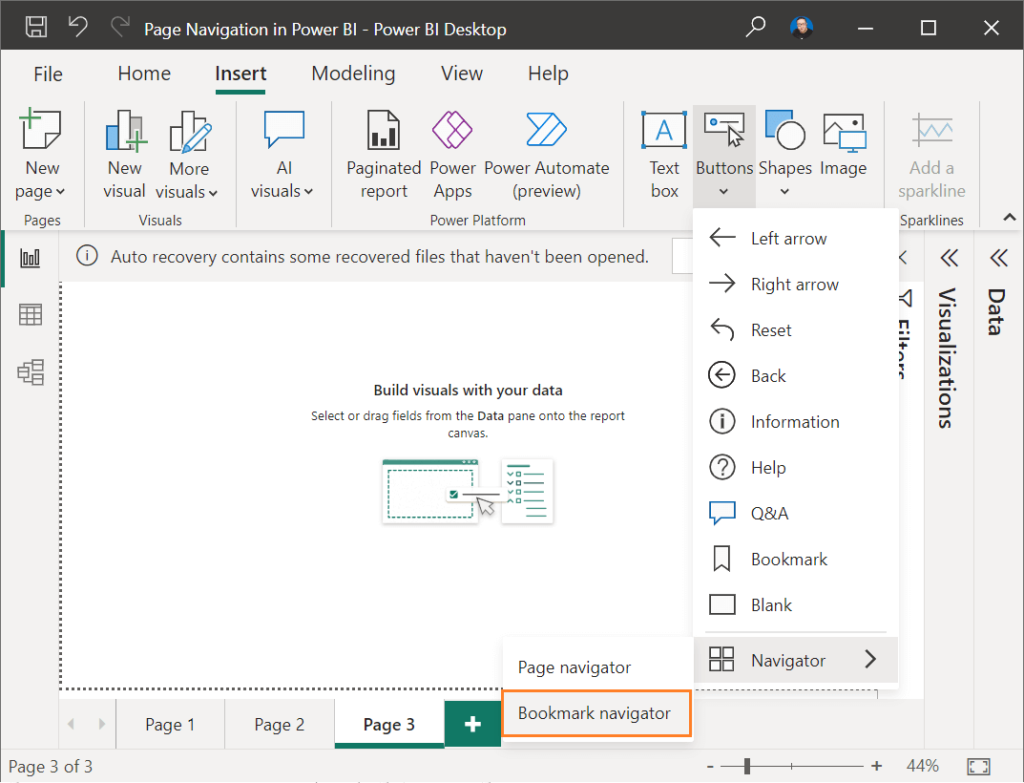
Read more, how to create a Bookmark in Power BI?
4) Page Navigator
Page Navigator in Power BI provides a range of features that allow users to easily navigate between different report pages and explore data in more detail.
By using these features, you can create custom navigation experiences that are tailored to the needs of your users.
How To Use Page Navigator In Power BI?
As we earlier mentioned, to navigate between different pages in Power BI, you can use the Page Navigator.
In this section, we’ll lea
How to use Page Navigator as a kind of Page Navigation in Power BI.
Steps
- Open Power BI Desktop, then open your dashboard that contains some pages.
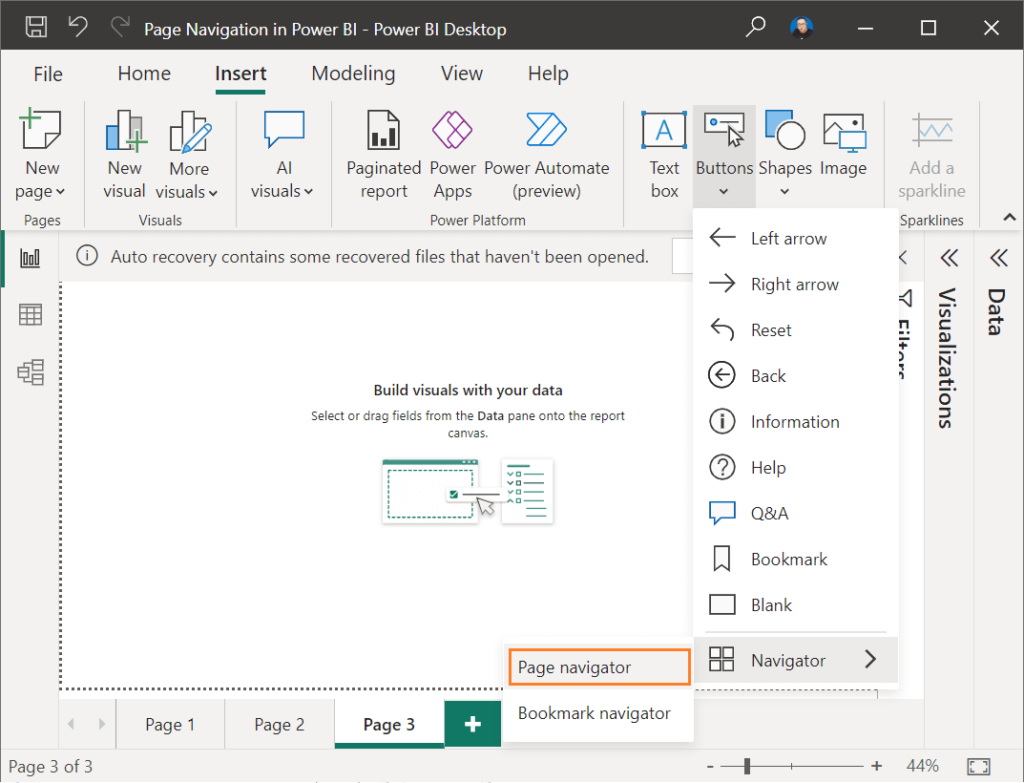
- From “Insert” tab, click on “Buttons” > “Navigator” > “Page Navigator“.
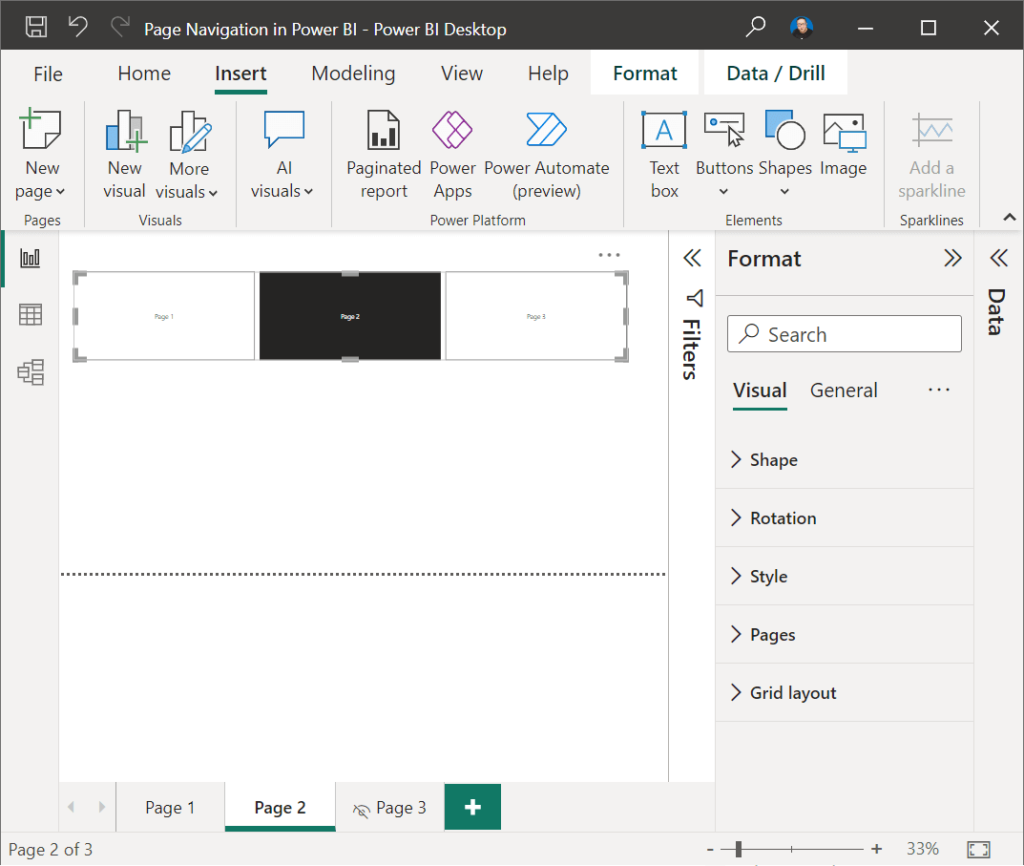
- Great, a new Page Navigator has been added that shows all pages in your Power BI report.
How To Customize Page Navigator In Power BI?
As you can see, the new Page Navigator needs some formatting enhancements to meet your needs, so to customize your Page Navigator, you have to use “Format” pane as below.
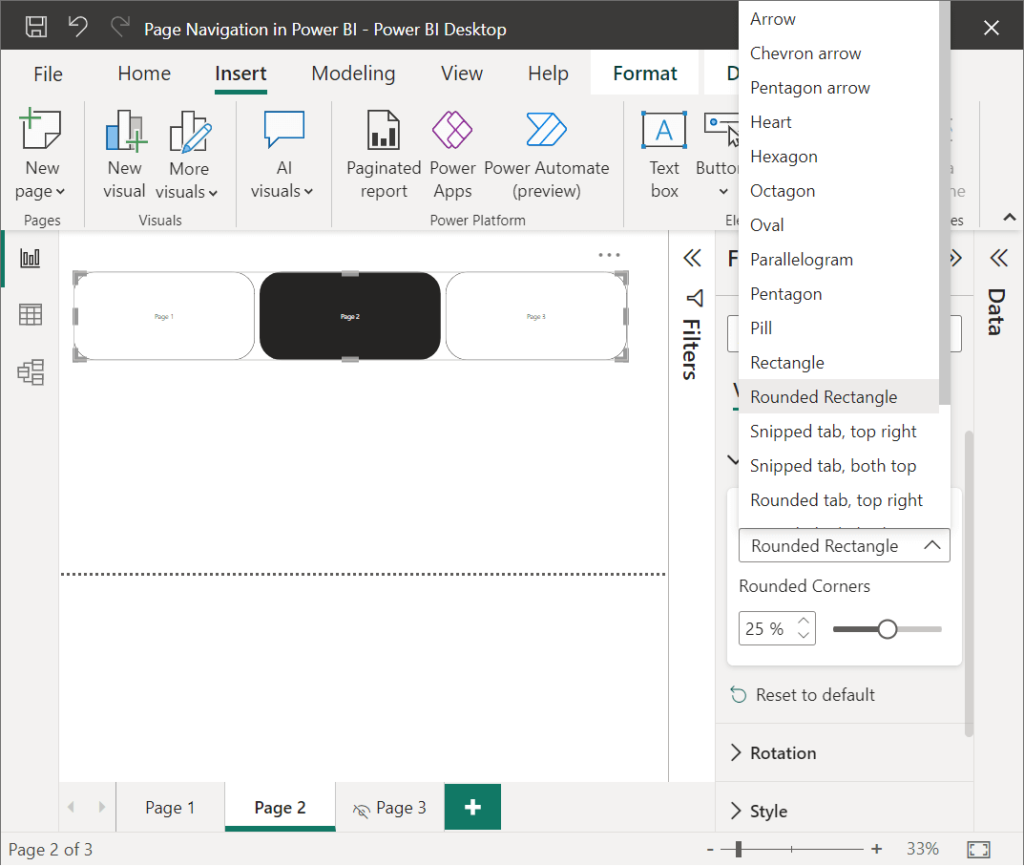
Change Page Navigator Shape
At “Format” pane, click on “Shape” to customize the Page Navigator as you prefer.
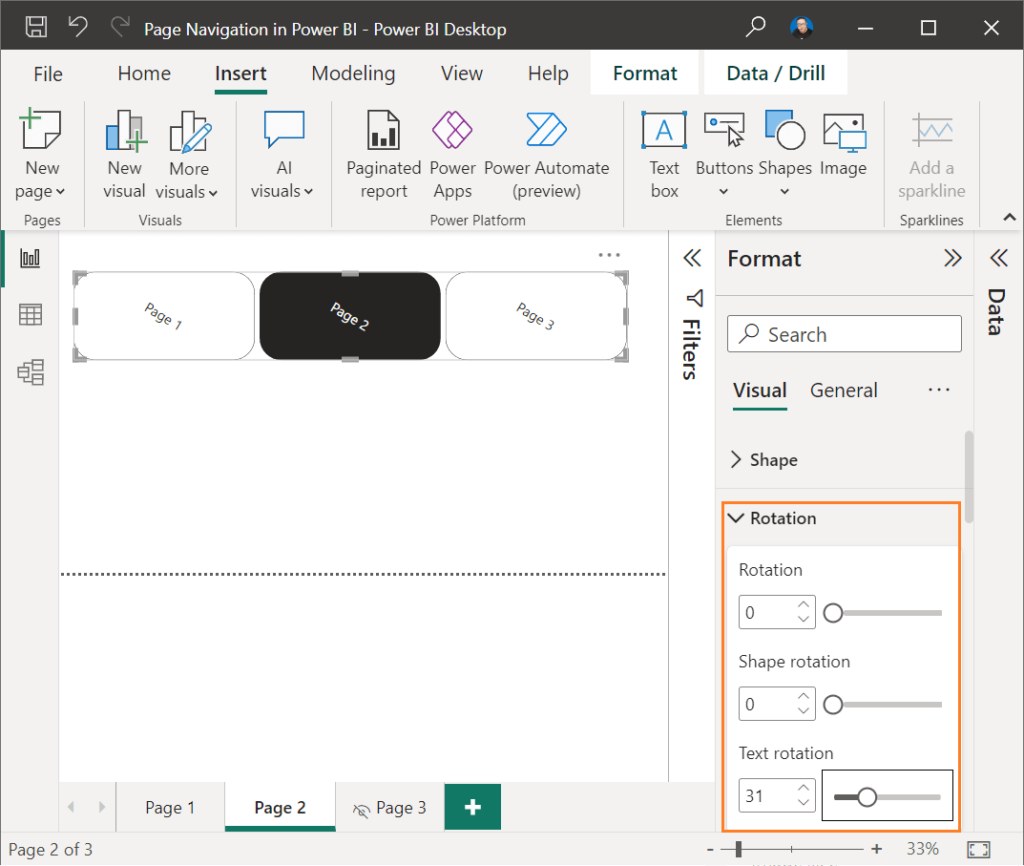
Page Navigator Rotation Settings
In Page Navigator format settings, you can also control the rotation settings for shape, text as you prefer.
Customize Page Navigator Style
In “Style” section, you can customize the text, background, border, shadow and glow based on the below button state:
- Default.
- Selected.
- Hover.
- Press.
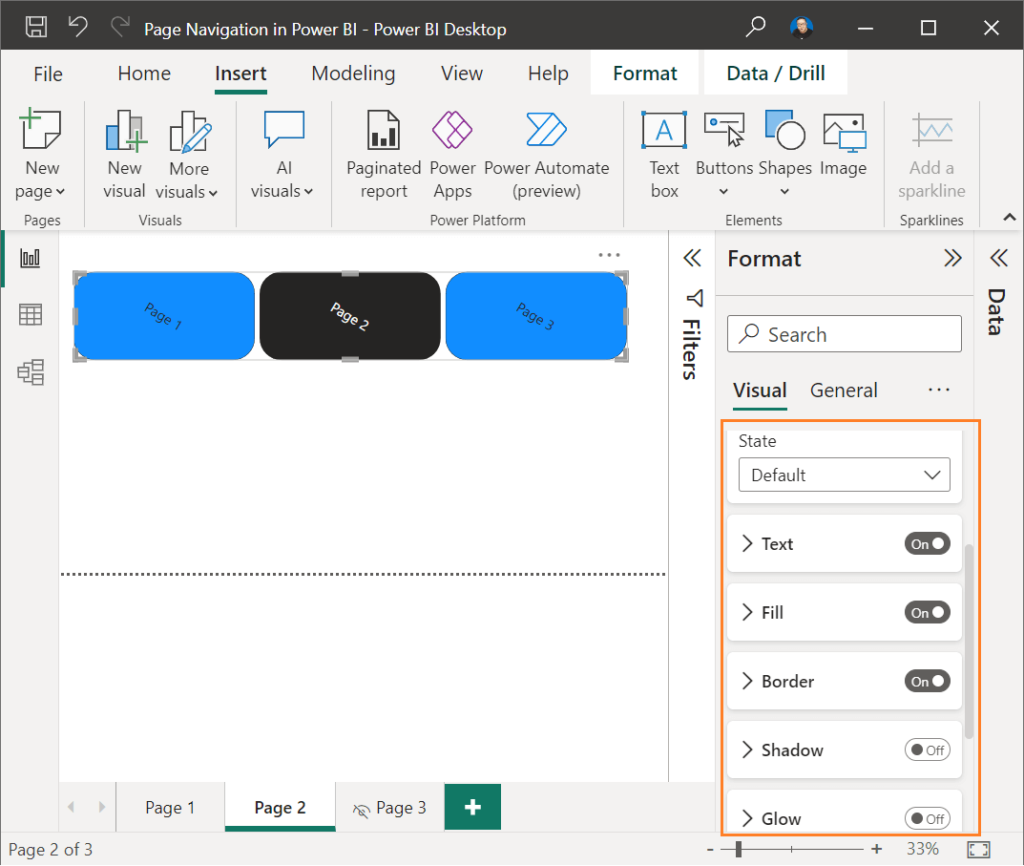
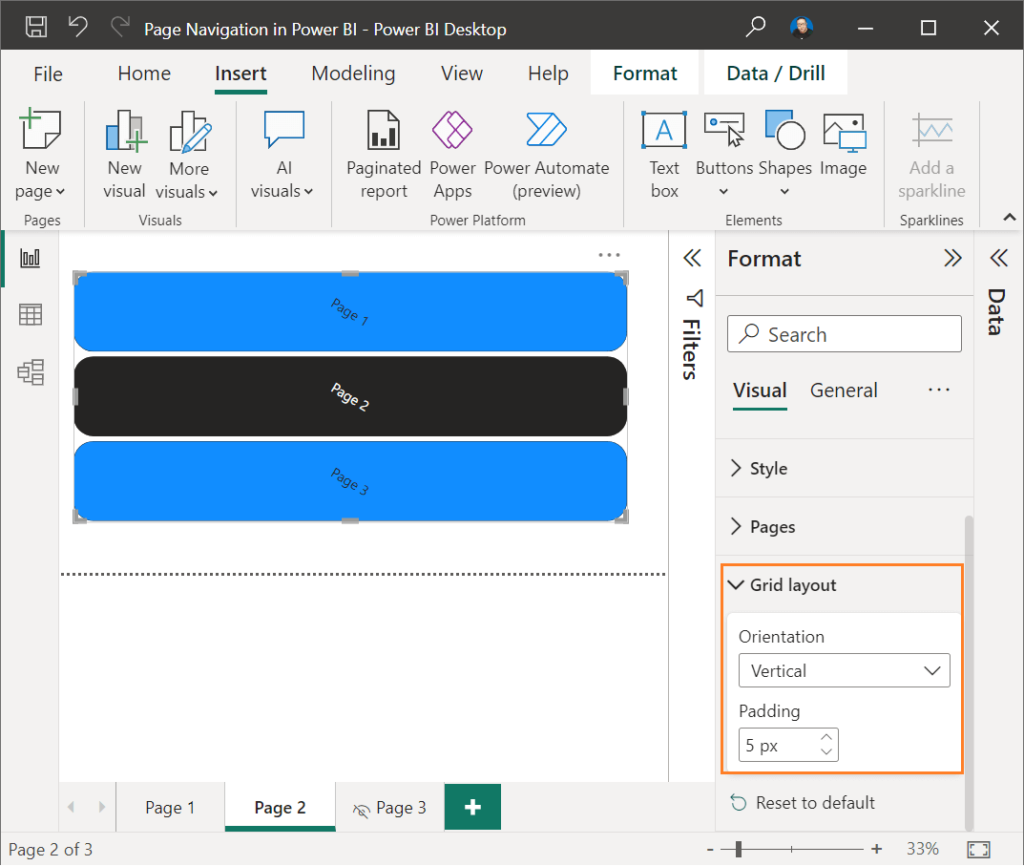
Change Page Navigator Orientation
In “Grid Layout“, you can easily change the Page Navigator Orientation to Vertical or Horizontal as you prefer.
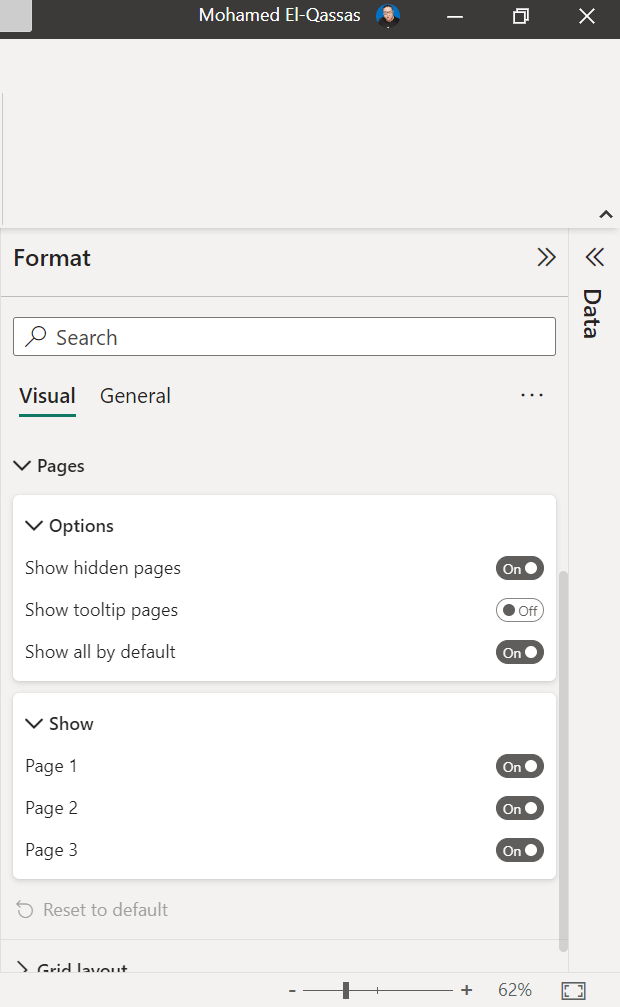
How To Customize Visible Pages In Page Navigator In Power BI?
In the Feb 2023 Power BI summary feature updates, Power BI Team released a new reporting feature related to Page Navigator, which many customers have been asking about, that is you can simply Customize visible pages in Page Navigator to easily select which report pages appear in the Page navigation in Power BI.
Excluding Specific Pages In Page Navigator
To exclude specific pages in Page Navigator, you have to do the following:
- Expand the Show card in the Pages section of the formatting pane,
- Tu
the Show all by default toggle to Off to tu
all pages within the Show card to Off. - You may then go in and just tu
back on the pages you want to see.
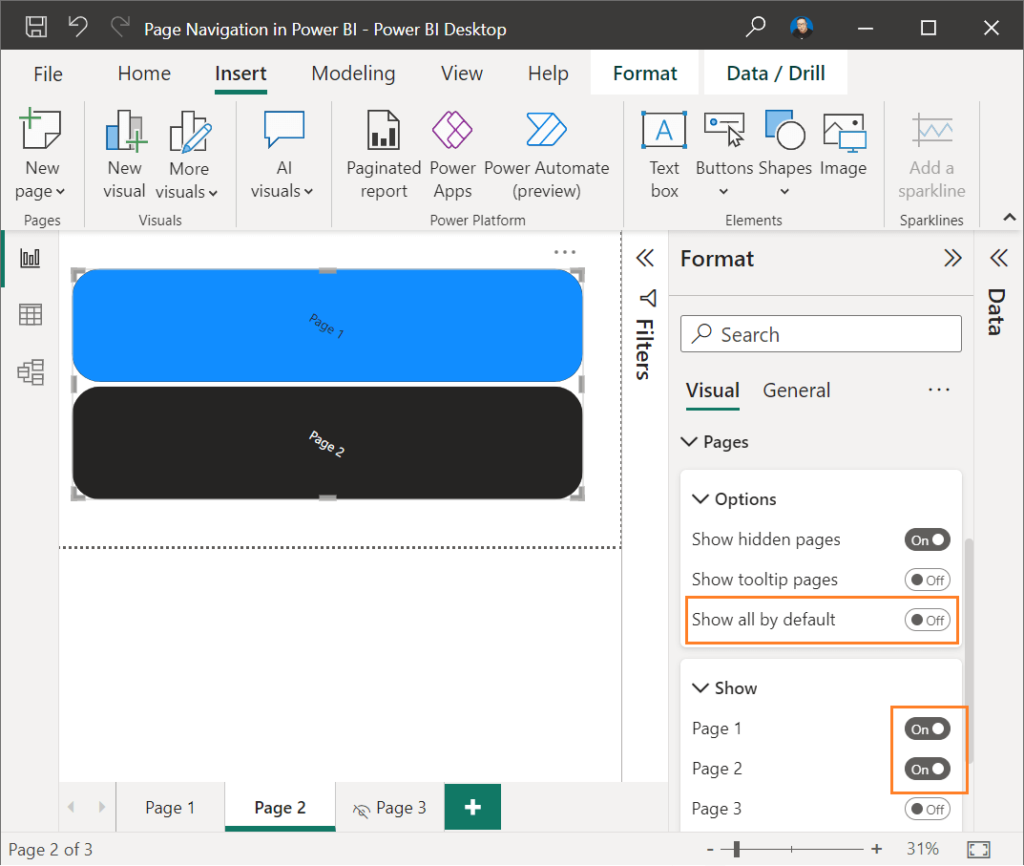
In Page Navigator Pages options, you can also show or hide hidden pages or tooltip pages.
Conclusion
In conclusion, the Page Navigation in Power BI is a useful tool for organizing and presenting data in a clear and concise manner.
Page Navigation in Power BI also
- Allows users to quickly navigate between different report pages, providing an overview of the report’s contents and highlighting key insights and conclusions.
- Particularly useful for users who are unfamiliar with the report or those who need to quickly locate specific information.
In this post, we have provided 4 options to perform bookmark or page navigation in Power BI, and introduced in more details the new Feb 2023 update related to Page Navigator which helps to easily include or exclude specific pages in Page Navigator.
About the Author:
 I’m Microsoft MVP.
- SharePoint Stackoverflow Moderator.
- C# Co
er MVP. - Microsoft TechNet Wiki Authour.
- Microsoft TechNet Wiki Judge.
- Technical Author and Blogger.
- Senior Technical Consultant with 10+ years of experience in SharePoint, Project Server and BI.
Reference:
El-Qassas, M (2023). Custom Page Navigation In Power BI. Available at: https://devoworx.net/custom-page-navigation-in-power-bi/ [Accessed: 12th May 2023].