









SQL Optimization and High Availability (Always-On) for SharePoint

Contents
Introduction
SharePoint Always-on deployment strategy is an important requirement to achieve high availability within an organization. SharePoint has broken the barrier within an organization for collaboration, communication, and social network, but the large amount of data analysed and consumed, along with our culture of always-connected has posed a challenge to keep our infrastructure up and running. To deploy an end-to-end strategy for high availability, organizations need to implement an SLA that covers operational processes, governance, architecture, and technical solutions. Such an SLA will require many discussions and documentations to set the guidelines and expectations. In this blog, we will focus on the architecture and technical solutions related to the SharePoint data, and how to optimize SQL and SharePoint infrastructure to achieve such solution.
The reason we plan high availability is to achieve two goals:
1. Business Continuity: A set of planning and activities which are intended to ensure that an organization’s critical business function will either continue to operate despite serious incidents or disasters, or will be recovered to an operational state within a reasonably short period
2. Disaster Recovery: A disaster recovery plan (DRP) is a documented process or set of procedures to recover and protect a business IT infrastructure in the event of a disaster. Such plan, ordinarily documented in written form, specifies procedures an organization is to follow in the event of a disaster.
I want to emphasise here that high availability and fault tolerance are not the same. A fault tolerance solution is a hardware centric solution that uses hardware to detect specific fault and instantly switch to a redundant hardware. A fault tolerance solution is a part of a high availably implementation.
To achieve high availability, a solid SLA will need to put in place and agreed upon between IT and business owners, on how much downtime the organization can afford to have. Below is a table identifying the % of availability to the downtime:
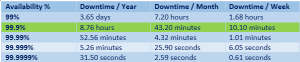
99.9% is the normal for most businesses.
A high availability SharePoint architecture
A typical SharePoint architecture consists of 3 tiers:
1. The Web Tier;
2. The middle SharePoint layer; and
3. The Data Tier.
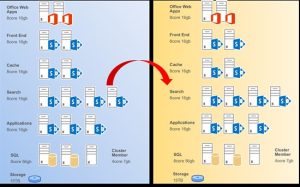
Figure 1 shows a high availability architecture consisting of a hot site (left side – blue background), with a Disaster Recovery (DR) site (right side – yellow background)
To achieve a high availability on the Web Tier, multiple Web Front End servers should be deployed with a load balancer to distribute the user requests to all the available servers.
The Middle Tier hosts all the SharePoint Service Applications along with Central Admin. You want to have Central Admin hosted on more than one server with a dedicated DNS A record, to achieve high availability for this application. As a general rule, you will need minimum two servers hosting the same service. In the case of a server outage, the second server will continue to operate preserving the service application functionality and configuration for the farm.
The Search Service Application is a bit unique here, and has to be architected a bit differently than the rest of the service applications. It has more complexity as it involves multiple components per farm. You will need dedicated servers for search, where you will need to host the search components on more than one server to achieve high availability for the search topology. The components are:
1. Query component;
2. Crawl component;
3. Content Processing Component;
4. Index Partition: Make sure you have at least two index components, hosted on different servers, and at least one replica for each component, also hosted on different servers;
5. Analytics Component; and
6. Admin Component.
The Data Tier is the SQL cluster hosting all the SharePoint databases. SharePoint heavily relies on this tier, as all of the information within a SharePoint site is stored in a SQL content database. With SQL 2012/2014, Optimization and high availability options have made life easier to implement and manage.
AlwaysOn feature has been introduced in SQL 2012 and improved in SQL 2014, which have a great impact on achieving high availability in a SharePoint farm and to synchronize the SharePoint data across multiple clusters. The introduction of AlwaysOn Availability Groups will give SharePoint Admins a piece of mind. This new feature is a combination of SQL mirroring (copying databases to other nodes) and clustering technologies (automated failover). AlwaysOn Availability Groups will allow you to do the following:
1. Create up to four asynchronous replicas of the SharePoint databases;
2. Create synchronous replicas of the SharePoint databases on up to three servers; and
3. Provide automated failover.
This MSDN article explains the different scenarios of SQL high availability options: https://msdn.microsoft.com/en-us/library/ms190202.aspx.
SQL 2012/2014 Optimization
I suggest following these steps to fine tune SQL server for SharePoint 2013:
1. Use maximum amount of SQL Server RAM: If you have ever checked the memory on the SQL server, you may have noticed that SQL uses almost all the memory on the box. It is actually a good thing to have SQL using most of the memory instead of having the RAM sitting idle. Usually SQL releases the memory if other programs need it, but this is not always the case. When this happens, it will have a huge impact on the performance of the server, resulting in a very slow response of SQL, which means poor SharePoint performance. To avoid this, manually set the maximum memory SQL can use. As a rule of thumb, I usually set SQL to use 90% of the server RAM.
2. Use high RPM storage: In most cases, you might be using a SAN and not a dedicated storage for SQL. In either case, slow storage devices will affect the performance of your SQL. Make sure you test IOPS for your SQL and use high performance disk storage (RAID 10 for data and Raid 5 for logs).
3. Different volumes: Split the log and data files to different volumes.
4. Log files maintenance: every call from SharePoint to SQL is logged in the transactional log file (the .IDF file). Transactions are logged against the content and configuration databases, and will fill up pretty quick, eating most of your disk storage, and taking down your server if the disk is full. To prevent this from happening you have two options:
a. Set a maintenance to truncate the log files once a month; or
b. Set the databases’ recovery mode to simple.
In depends on your business nature, one of the above options will make sure you don’t run out of disk space caused by a large IDF file.
5. Enable backup compression: When you enable compression on your native SQL backups, you will get the backups completed faster and will use less CPU time, even if you are setting the backups to run during off hours.
6. Set your MAXDOP to 1.
7. Autogrowth: Change the Autogrowth default value from 1 MB to a larger number. These days, most documents are larger than 1 MB in size. This means, if you upload a file larger than 1 MB in size, the Autogrowth will kick-in multiple times, and this results in slowing down your system. It depends on your business and the type of documents you store in your SharePoint farm, but a good Autogrowth number can be 50MB.
As a conclusion, you should not use the default installation of SQL or SharePoint, but plan your installation and configuration carefully. Like any other enterprise application, make sure you set up a maintenance plan for your farm, otherwise performance will get affected and your farm will start breaking down. Monitoring your SQL health and storage will always go a long way in preventing hiccups and performance headaches.

About the Author
Mike Maadarani is a SharePoint Server MVP and SharePoint Architect, and has been providing strategic SharePoint solutions for the past 13 years. With over 19 years of IT industry experience, Mike spent the last few years managing and delivering SharePoint solutions to a wide range of mid to large scale projects. He is an evangelist and visionary where he can and provide the business and technical leadership required for delivering successful global SharePoint projects.
Mike is a Search and WCM expert and has deployed large SharePoint ECM and Collaboration implementations in North America.