









Set Document Library Webpart to Specific Folder – SharePoint Online

Contents
Introduction
This blog gives you step by step details on how to set the document library webpart view to specific sub folder. OOB SharePoint online does not support view to show the sub folder of the document library. This can be achieved in 2 ways
- By changing the view page Query using the SharePoint Designer
- Java Script to modify the view Query to sub folder.
In this blog I will show how to change the view Query using the JavaScript. Below are the steps to achieve
Step 1: Create a view to the document library
Step 2: Get the View GUID
Step 3: Create a Page to execute JavaScript
Step 4 Create Page to add document library Webpart
Follow the below steps to run the script to modify the view. This script needed to be run just once to change the view. Once the view is changed the web part view will use the query to show the sub folder.
Step 1
Create a document library and create a view to be able to use it in the web part. In the below scenario I am using the Shared Documents library and created the FolderView.aspx. This folderview.aspx is a normal view created for the document library.
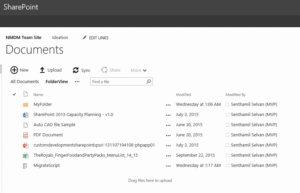
This folderview.aspx will be changed to show the documents inside the MyFolder folder.
Step 2
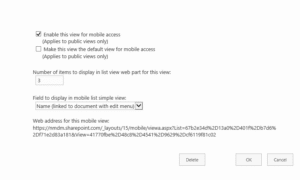
To get the view GUID, edit the folderview.aspx and scroll down to the last to see the GUID. This is the GUID of the view in my case “41770fbe-48c8-4541-9629-cf6119f81c02”

Step 3
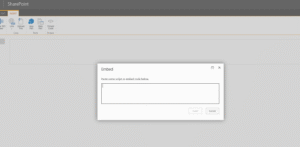
Execute the javascript using the Script Editor webPart. Add the Embed Code and the below script.
Script
<script type="text/javascript">

var context = new SP.ClientContext.get_current();

web = context.get_web();

list = web.get_lists().getByTitle('Documents');

var webPartView = list.getView('{41770fbe-48c8-4541-9629-cf6119f81c02}');

context.load(list);

context.load(webPartView);

context.executeQueryAsync(Function.createDelegate(this, addWebPartSuccess), Function.createDelegate(this, addWebPartFail));


function addWebPartSuccess(sender, args) {


    if (webPartView) {

        alert('webpartview valid');

        webPartView.set_scope(2); // recursiveall

        webPartView.set_viewQuery('MyFolder
');

        webPartView.update();

        context.load(webPartView);

        context.executeQueryAsync(Function.createDelegate(this, updateSuccess), Function.createDelegate(this, updateFailed));

        //alert('call finished');

    }

    else {

        alert('Unable to get view');

    }

}


function addWebPartFail(sender, args) {

    alert('web part failed');

}


function updateSuccess(sender, args) { alert('changed the view'); }

function updateFailed(sender, args) { alert('Request failed. ' + args.get_message() + '\n' + args.get_stackTrace()); }

</script>
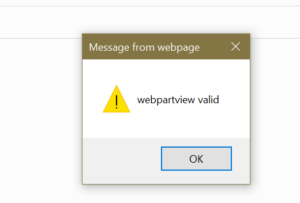
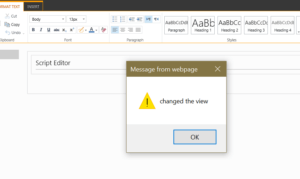
If the below message is shown, then the view is changed.
Step 4
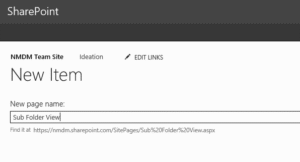
Create the page to add the web part for the document library. In my case I created the page called Sub Folder View from the SitePages library
After adding the webpart below is the view
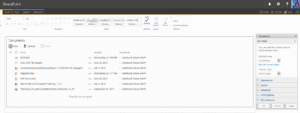
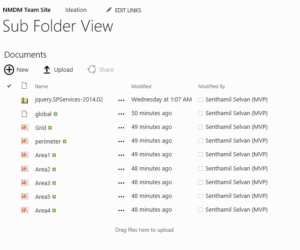
Once the page is added and selected the FolderView the webpart will show the sub folder.
About the Author
Senthamil Selvan is an Microsoft MVP in Windows Development. He has 11+ years of experience in Microsoft Platform including Windows Forms, SharePoint and Universal Apps development.