








Create Tab in Office 365 SharePoint Lists

Contents
Introduction
This short article shows you how to create tab look in SharePoint Custom Lists
When I went to http://www.w3schools.com/howto/howto_js_tabs.asp. I saw the tab I want but how am I going to put this in my Office 365 SharePoint.
Steps
- Create a SharePoint Custom List
- Open SharePoint Designer 2013 and point to the SharePoint site.
- Choose Lists and Libraries.
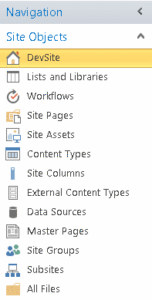
4. Choose a List, in my example is Tabblist.
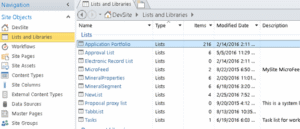
- Click New in Forms.
- Name the form, for example, NewFormCust.aspx. Check the Set as default form for the selcted type.
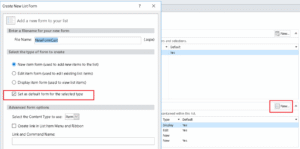
7. Click on the new form, NewFormCust.aspx, to edit.
8. Click on the Advanced Mode.
9. Under the line
<asp:Content ContentPlaceHolderId=”PlaceHolderMain” runat=”server”>
add the JavaScript
https://someone.sharepoint.com/sites//sitecollection/subsite%20/b%20style=
The JavaScript as below.
function openCity(evt, cityName) {
// Declare all variables
    var i, tabcontent, tablinks;

// Get all elements with class=”tabcontent” and hide them
    tabcontent = document.getElementsByClassName(“tabcontent”);
for (i = 0; i < tabcontent.length; i++) {
tabcontent[i].style.display = “none”;
}

// Get all elements with class=”tablinks” and remove the class “active”
    tablinks = document.getElementsByClassName(“tablinks”);
for (i = 0; i < tablinks.length; i++) {
tablinks[i].className = tablinks[i].className.replace(” active”, “”);
}

// Show the current tab, and add an “active” class to the link that opened the tab
    document.getElementById(cityName).style.display = “block”;
evt.currentTarget.className += ” active”;
}
- Under the line
<SharePoint:CssRegistration Name=”forms.css” runat=”server”/>
Add the css
<SharePoint:CssRegistration Name=https://someone.sharepoint.com/sites/sitecollection/subsite/SiteAssets/tabcontent.cssrunat=”server”/>
The css code as below.
.tabcontent {
    -webkit-animation: fadeEffect 1s;
    animation: fadeEffect 1s; /* Fading effect takes 1 second */
}

@-webkit-keyframes fadeEffect {
    from {opacity: 0;}
    to {opacity: 1;}
}

@keyframes fadeEffect {
    from {opacity: 0;}
    to {opacity: 1;}
}
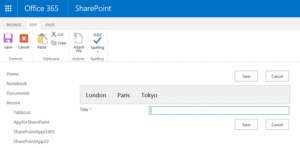
11. When you create a new item now then you should see.

Tags
trending posts