









As always the source code of this project is available on my personal GitHub repository and you can download the WSP solution from this article, the links are down bellow.

How to add Google Analytics to SharePoint without modifying the master page
Contents

Contents
Google Analytics is the most widely used web analytics service in the internet, it provides a concise analysis with reports of everything that happens in your site as well as real time reports, mostly targeted for public sites it also works on intranets.
Intranet portals are the central hub of companies; important information is communicated to employees through this portals and you need to make sure that everyone can access to it no matter the device or technologies used.
Analyzing your intranet portal will help you to understand how users interact with it, what are the most viewed sites and what sites do you need to improve.
With this being said let’s check how you can add google analytics tracking to your SharePoint site without touching the master page.
In this article, I explain step by step how to build and deploy a script link using a custom action into SharePoint, I am also providing the installation files and the instructions to use it if you don’t want to build it yourself.
How to setup Google Analytics
First things first, before we get into the SharePoint bits let’s set up google analytics and get everything you need.
- Sign in to your Analytics account
- Select the Admin tab
- Select an account from the menu in the ACCOUNT column, or CREATE NEW ACCOUNT if you don’t have one already
- Select a property from the menu in the PROPERTY column
- Under PROPERTY, click Tracking Info Tracking Code
- Save the Website tracking script code
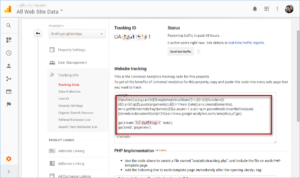
- Save Google Analytics tracking code
More information about google analytics setup can be found here.
Create SriptLink Custom Action
If you are not into code jump to the next section.
Heads up! The solution built in this tutorial uses a declarative SandBox solution to deploy Google analytics, this type of solutions is supported by Microsoft in the most recent versions of SharePoint including SharePoint 2016 and SharePoint Online. You can read more about this type of solutions here.

- Open Visual Studio and create a new project
- Select Office/SharePoint templates and SharePoint Empty Project
- I’ll call it SharePointGoogleAnalytics, but you can call it whatever you want
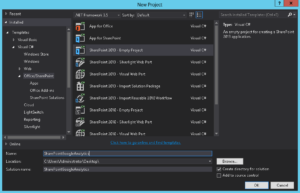
- New SharePoint project
- Provide the URL for the site to use to debug
- Select Deploy as sandboxed solution and click Finish
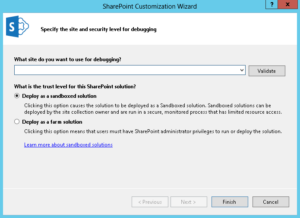
SharePoint Customisation Wizard
6. Once your project opens go to the Properties and set Include Assembly in Package to False, this is required to build a declarative sandbox solution
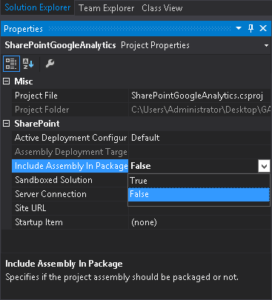
7. Right click on your project, go to Add and select New Item
8. Select Empty Element and call it AnalyticsCA, this will be the ScriptLink Custom Action
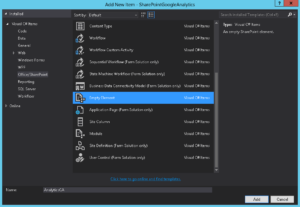
Add new item
- Right click on your project, go to Add and select New Item
- Select Module and call it Style Library
- Delete the Sample.txt file that is created by default
- Create the folder structure bellow inside the Style Library Module
GoogleAnalytics js - Right click in the js folder, go to Add and select New Item, from the Web group select the JavaScript File and call it ga.js
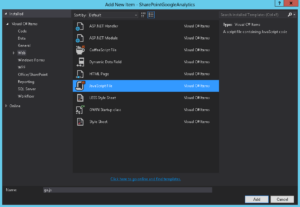
- SharePoint Project Structure
- At this point your project structure should look like the image bellow
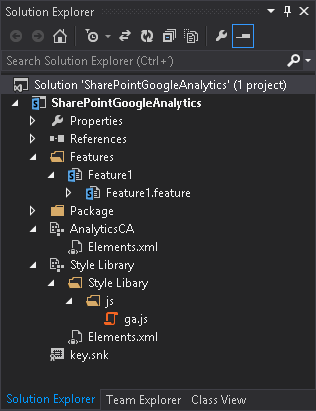
- Open the Elements.xml file inside the Style Library module, this file is generated by Visual Studio automatically however I like to modify it to it to publish the files automatically once the solution is activated and to replace the files if a previous version already exists in the system. Select the entire content of the file and replace it by the code bellow.
Note: If you are not using the same names I used make sure you adjust the URL and Path
<?xml version="1.0" encoding="utf-8"?>
<Elements xmlns="http://schemas.microsoft.com/sharepoint/">
<Module Name="StyleLibraryJS" Url="Style Library/GoogleAnalytics/js" RootWebOnly="FALSE" Path="Style Library\GoogleAnalytics\js">
<File Url="ga.js" Type="GhostableInLibrary" Level="Published" ReplaceContent="TRUE" />
</Module>
</Elements>
-
- Open the Elements.xml inside the AnalyticsCA module and paste the code bellow.
<?xml version="1.0" encoding="utf-8"?>
<Elements xmlns="http://schemas.microsoft.com/sharepoint/">
<CustomAction
ScriptSrc="~SiteCollection/Style Library/GoogleAnalytics/js/ga.js"
Location="ScriptLink"
Sequence="1">
</CustomAction>
</Elements>
This xml file will register the custom action and will execute the ga.js in all sites of your site collection.
Note: If you are not using the same names I used make sure you adjust the ScriptSrc- Open the Features folder and rename the Feature1 to GoogleAnalytics feature
- Open GoogleAnalytics feature
- Type a Title and Description for your features, both fields will be visible in your site collection
- Change the scope from Web to Site, this way the script will be deployed to all the sites in the site collection
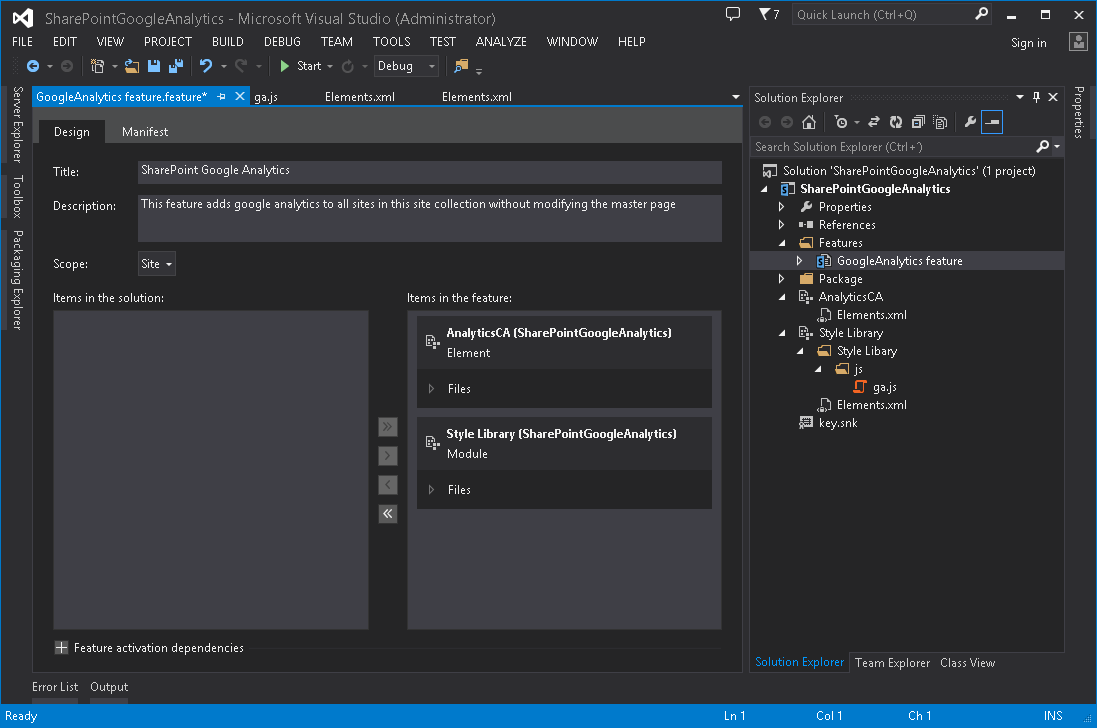
Add JavaScript File - Open the ga.js file in the Style Library module and paste there the script code you got from Google without the script tags. Your code will be like the code bellow except for the Track ID
- Compile your project and deploy the solution to all the site collection you want to track
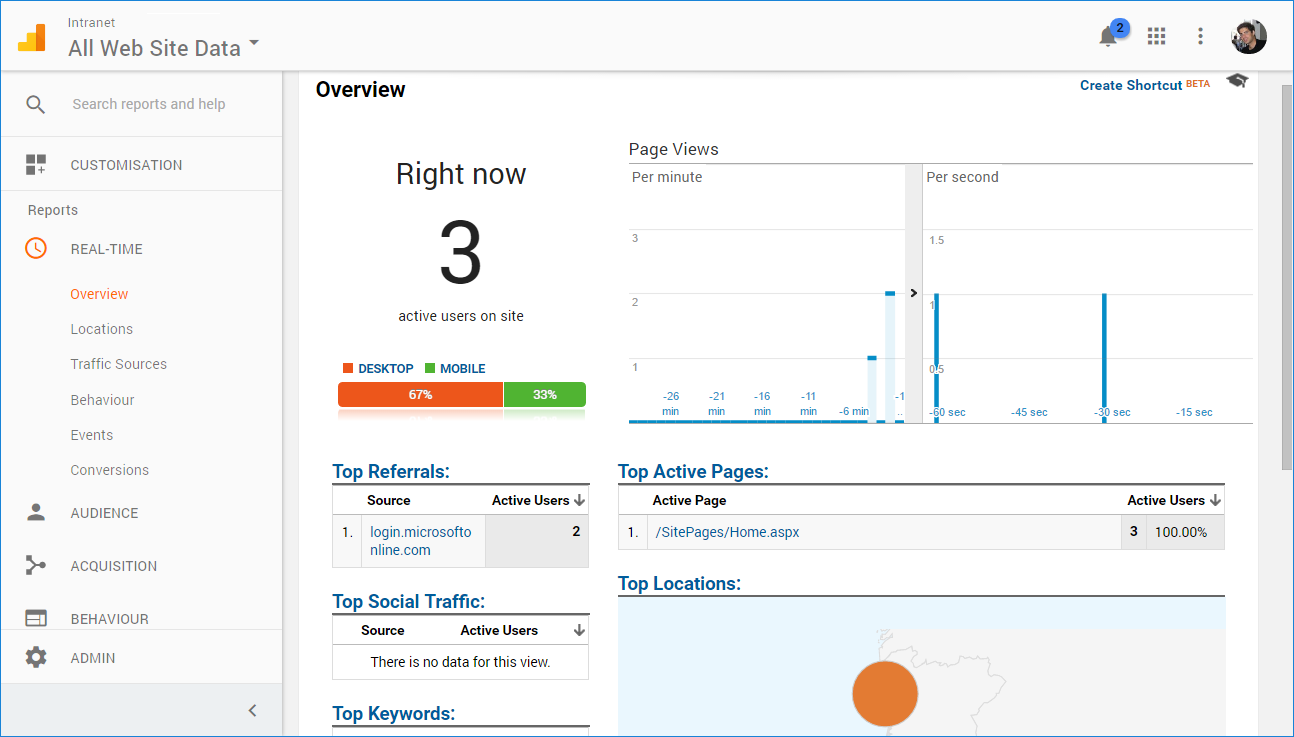
Once you deploy the solution your Google Analytics dashboard will immediately display real time data.
GA Page -
Install Google Analytics on SharePoint
Note: This topic is mainly for the users that didn’t build their own custom action project.
To install the solution in your SharePoint and start tracking your sites follow this steps:
- Download the solution
- On your site collection root site go to Settings Site Settings Solutions
- Upload and activate the solution, once you activate the solution google analytics script is immediately added to your site however it is not tracking your site yet, you still need to add your track id to the script
- Open your site with SharePoint designer
- Go to All Files Style Library Google Analytics js
- Check out and edit the ga.js file in advanced mode
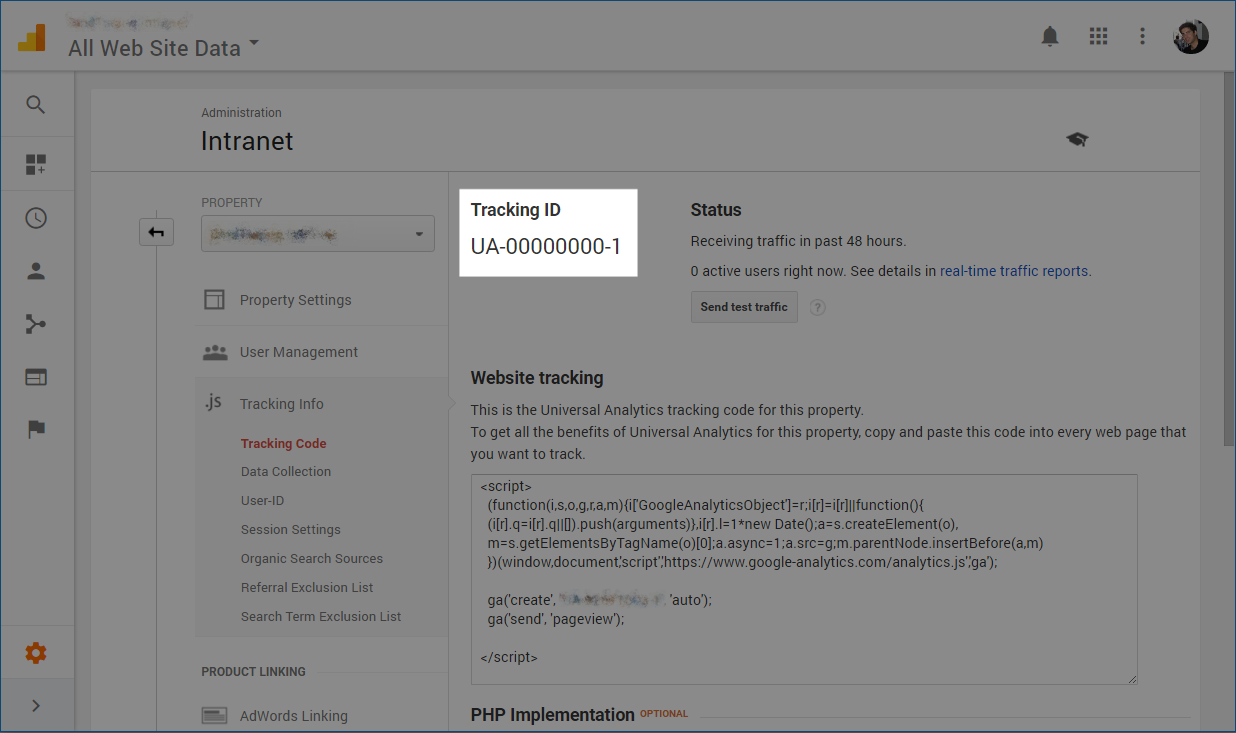
- Locate the words TRACK ID and replace it by your own track id from Google Analytics
Tracking ID - Save the file check it in and publish it as major version.
You are good to go; your site collection is being tracked by google analytics.
If you have multiple site collections and don’t want to open SharePoint designer for every single one to edit the JavaScript file you can use my SharePoint WSP Repackage tool to modify the solution and create your own unique WSP with your Track ID.
How deactivate Google Analytics tracking
If you want to stop tracking a specific site collection do the following:
- On your site collection root site and go to Settings Site Settings Site Collection Features
- Locate the Google Analytics feature and deactivate it

SharePoint Google Analytics
Conclusion
In this article, you learned how to add Google Analytics to SharePoint without touching the master pages and how to create a script link custom action step by step.
If the master page was blocking the analytics adoption in your company either because you are on SharePoint Online or because you don’t want to break your beautiful custom master page this is the way to go.
Unfortunately, this solution will not work on the new Team Sites and Document Libraries on SharePoint Online because for now they are no script sites. As soon as something comes out to support those sites I’ll review this article.
About the Author
João Ferreira
Web developer focused on SharePoint branding, blogger, tech enthusiast. Travelling and sports are my addictions, knowledge and success are my daily motivations. FOLLOW JOÃO ON TWITTHER
trending posts