


New Workflows in SharePoint and Teams

Introduction
ant to). This makes automation more accessible and useful to a broader set of people in Microsoft 365. And a lot less road divergence like that R. Frost fella warned about.
SharePoint lists and libraries and Teams recently received a new automation feature that makes building real workflows simple. And you do it directly from within the list or library or channel. And hey, it’s called: Workflows.
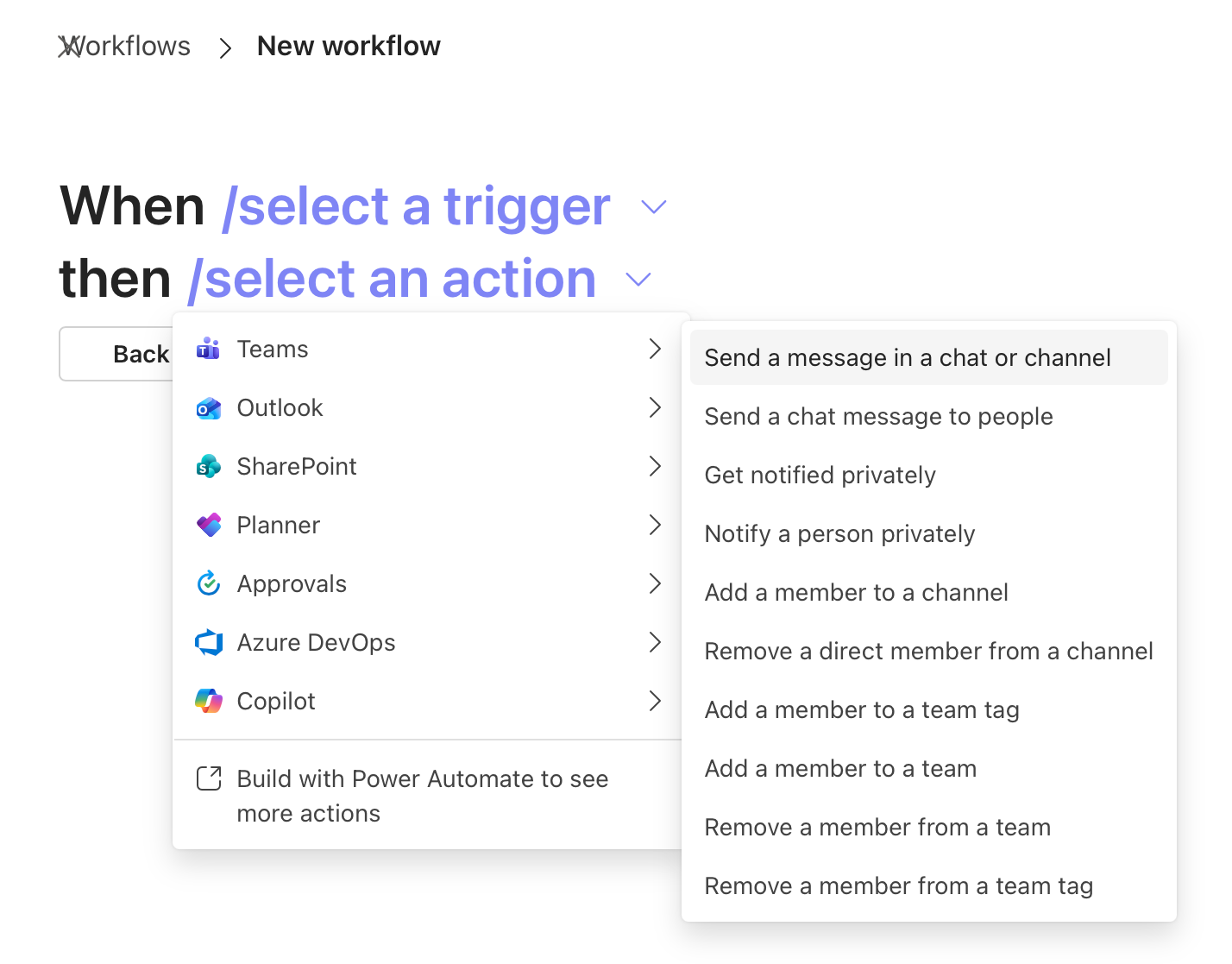
You can automate a variety of actions from SharePoint into Teams or vice versa, like starting a new chat in Teams based on a new list item that gets created. It also includes triggers and actions for Outlook (i.e. Send an email), Planner (i.e. Create a task), Copilot (i.e. Prompt an agent), and more. Pair this with a flight of new Quick steps and Approvals features and you’ve got a growing set of automation tools meant for everyone.
“The updated Workflows experience in SharePoint brings automation directly into the context of the content you’re working with, whether that’s a document library or a list … discover, create, and manage workflows without leaving your flow of work.” — John Mighell, Director, Product Marketing, Microsoft SharePoint and OneDrive, Microsoft
The video below showcases workflow creation from within a list, creating a post in a specified Teams channel each time a new list item gets created. You’ll see what it’s like to create a new workflow, run it, edit it, and see the output. Plus, you’ll get a peek-and-prove that Power Automate is the true engine behind it all AND that flows can be modified within the Power Automate design canvas.
Just look for the “Workflows” button
You’ll find it within the top command bar of SharePoint lists and libraries. And in Teams, it hangs off a channel’s “…” menu or within lists and libraries that are added as channel tab apps.

Whether you are in SharePoint or Teams, you can create and manage workflows directly from your files and lists, and it’s the same user experience (UX) across apps. You can start with ready‑to‑use templates that already understand your site, list, library, or team context. Or, you can build from scratch using a manual Mad Libs® style approach to select preferred triggers and actions. And, no matter where and how you start, you can extend further in Power Automate when.
💡 Workflows are quick to configure and easy to maintain and/or extend over time.
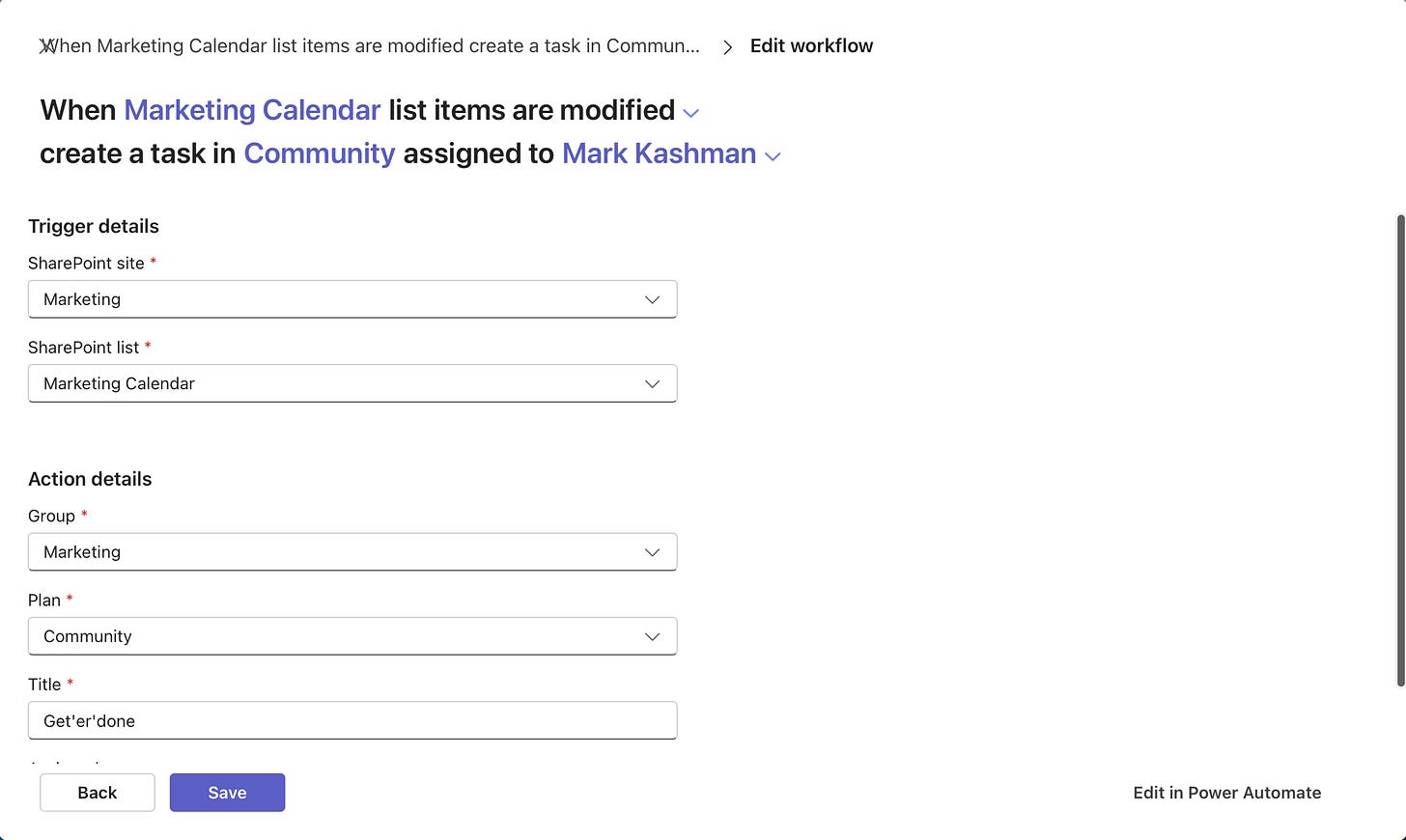
The below example is a workflow, in edit mode, that gets triggered when a list item is modified and then creates a new task in a specific Planner plan, assigned to a specific user.
🎓 Learn more
- “Automation updates for smarter workflows & business processes” by Nate Tennant (SharePoint community blog)
In the end …
My hope for you after reading this article and watching the above video, is that workflow becomes your road more taken. Do not agonize over app-switch decisions. Do not miss out on the actions of others. Automate your work life.
Don’t think twice. And that will have made all the difference.
Cheers, Mark “in the flow of Flows” Kashman 🧔🏻♂️

About the author
Microsoft 365 Consultant. Microsoft MVP. 20 years of Microsoft insider knowledge. Proven track record. Trusted adviser. Dynamic spokesperson. Creative powerhouse and team player, driving impactful narratives.
M, Kashman (27/10/2026) New Workflows in SharePoint and Teams – by Mark Kashman
Tags
trending posts