




There are two ways to search from Microsoft 365 admin center.
First in Microsoft 365:
From Admin center home page, enter user name in the search box. This will search all users, groups, settings and tasks.
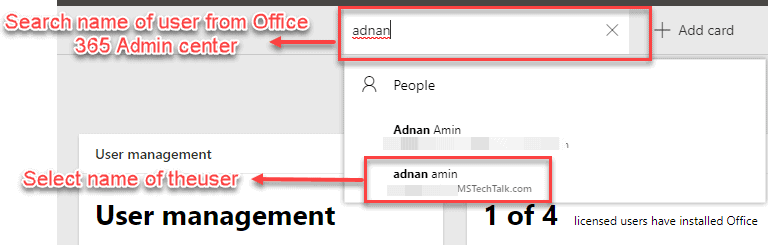
Select the user from drop down, it will open the user details dialog right side.
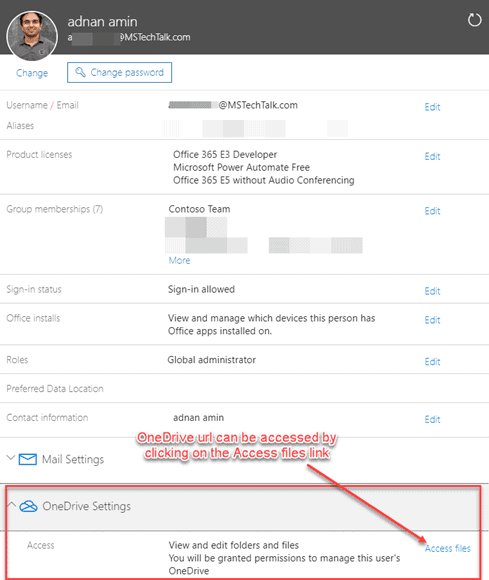
Click on Access files link, it will show you the OneDrive URL for the current user. And if you do not have access then it will also assign you administrative access.
Second in Microsoft 365:
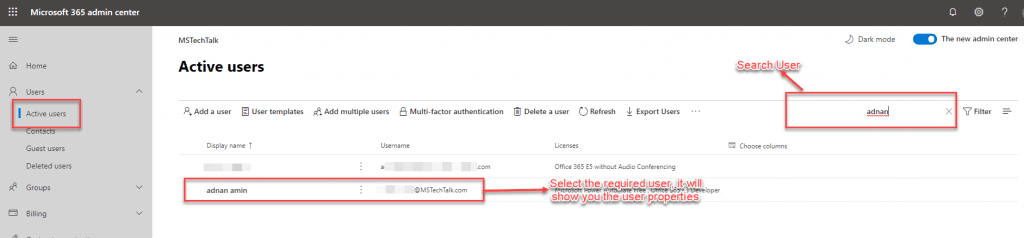
Follow below steps to get OneDrive URL access from active users list from Office 365 Admin Center:
From Office 365 Admin Center, click on active Users and search for the user, select user from the search result as shown in below screenshot.
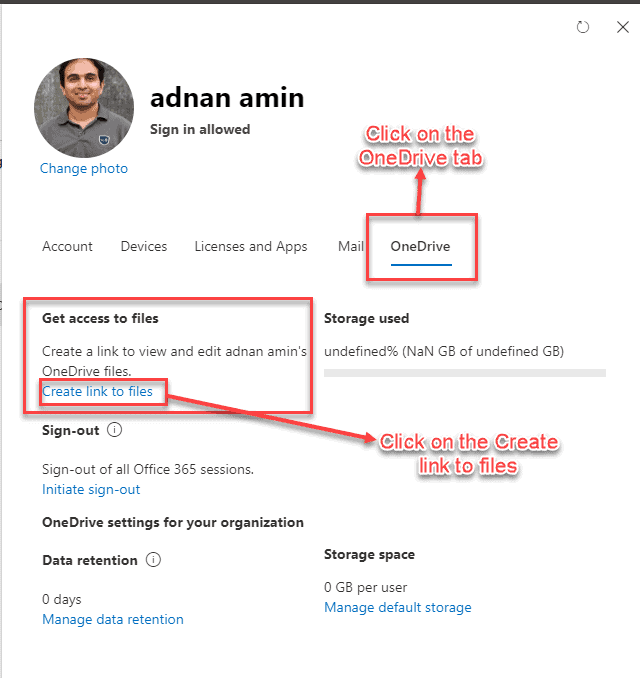
User details will be shown on the right side. Click on OneDrive tab and you can get the option to Create Link to files, this will assign administrative access to User’s OneDrive.
Using SharePoint Admin Center
Follow below steps to get OneDrive URL from SharePoint Admin Center:
Log in to SharePoint admin and click on More Features, this will open the lead you to user profile service link. (in Old admin panel, User Profile link was listed on left navigation).
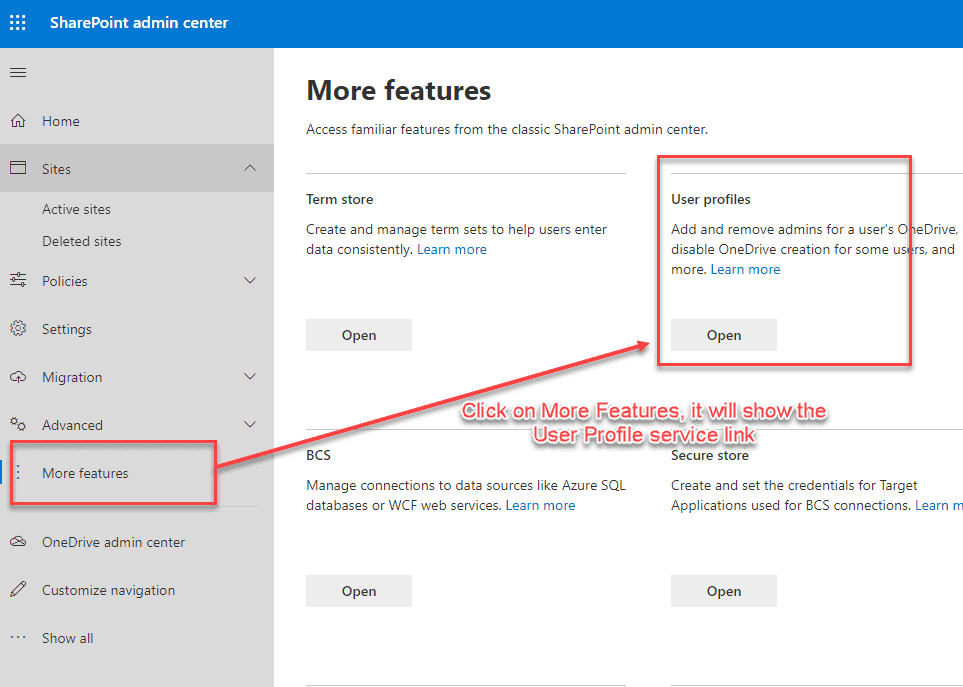
You might also need to use user profile page to provision OneDrive for a user and can also disable from here. Click Manage User Profile link on the page.
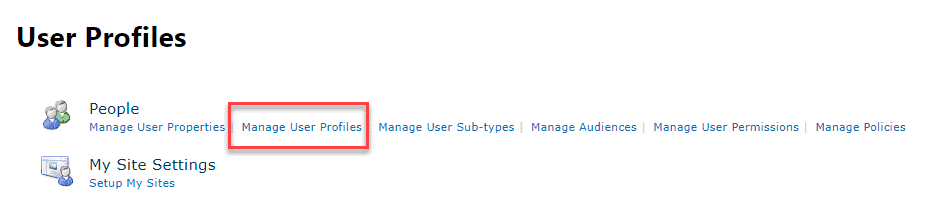
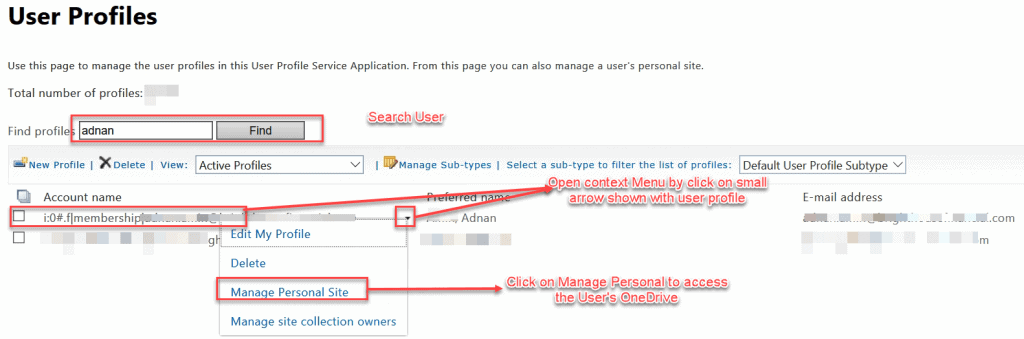
Now search by user name and select user profile from the list came from search result. From the search result, click on the menu item “Manage Personal Site” from the context menu.
Using SharePoint Online PowerShell
There are two ways to access OneDrive access for a user Using PowerShell:
SharePoint Online: PowerShell
I am not listing the full powershell script but you can use the blow cmdlets to access Onedrive for a User:
$userId = $ctx.web.EnsureUser("demo@mstechtalk.com") $ctx.Load($userId) $ctx.ExecuteQuery() #Get OneDrive Site URL from User Profile $peopleManger = New-Object Microsoft.SharePoint.Client.UserProfiles.PeopleManager($ctx) $profile = $peopleManager.GetPropertiesFor($userId.LoginName) $ctx.Load($profile) $ctx.ExecuteQuery() Write-host $profile.PersonalUrl
PnP PowerShell:
A simple PowerShell cmdlet from Pnp PowerShell can retu
you the OneDrive URL of the requested user:
Adnan is two time SharePoint MVP (Most Valuable Professional) with over 12 years of extensive experience with major expertise on SharePoint Server, Office 365, .Net Platform and Microsoft BI. He is currently working SharePoint Architect at FMT Consultants. He is MCT Regional Lead for Pakistan Chapter since 2012. He is working on SharePoint for past nine years and worked on different intranet/intranet solutions for private & govt. sector majorly in Gulf region, which include OOB and customized solutions. He is a trainer, technology evangelist and also speaks in community forums.
Don’t miss the best new content from the Microsoft 365, Microsoft Power Platform & Microsoft Fabric & SQL community
SPEAKER DETAILS
Create your Free Account
Join ESPC Learning Hub
Become an ESPC Community Member today to access a wealth of SharePoint, Teams and Azure knowledge for free. New content is added daily to the
online Resource Centre, across a variety of topics and formats from Microsoft MVPs and industry experts. With over 2,500 eBooks, webinars,
presentations, how-to videos and blogs, there is something to suit everyone’s learning styles and career goals.
We use cookies and similar technologies to improve your browsing experience, measure website performance, support event registration journeys, and personalise content. You can choose which categories of cookies to allow using the options below.
Functional
Always active
The technical storage or access is strictly necessary for the legitimate purpose of enabling the use of a specific service explicitly requested by the subscriber or user, or for the sole purpose of carrying out the transmission of a communication over an electronic communications network.
Preferences
The technical storage or access is necessary for the legitimate purpose of storing preferences that are not requested by the subscriber or user.
Statistics
The technical storage or access that is used exclusively for statistical purposes.The technical storage or access that is used exclusively for anonymous statistical purposes. Without a subpoena, voluntary compliance on the part of your Internet Service Provider, or additional records from a third party, information stored or retrieved for this purpose alone cannot usually be used to identify you.
Marketing
The technical storage or access is required to create user profiles to send advertising, or to track the user on a website or across several websites for similar marketing purposes.
Microsoft 365, Power Platform, Fabric & SQL Updates
Join our Mailing Lists
Join 30,000+ professionals and stay ahead of the curve. Get the latest conference updates, industry insights and early access across Microsoft 365, Power Platform, Fabric & SQL. Unsubscribe at any time.